Divoom: pixel art editor
- 4.7
- Rating
- 1.00M
- Installs
- Free
- Price
 Analysis by App-foxy
I approached Divoom: pixel art editor as a practical tool rather than a simple drawing toy. It belongs to the Art & Design category, and its purpose is clear: help you create pixel-style artwork that can be used with the Divoom ecosystem. After spending time with it, I found that the important question is not whether it can replace every professional illustration app. It cannot. The better question is whether you want a focused, low-pressure way to make small, characterful images without dealing with the complexity of a full digital art suite.
My short answer is yes, if you enjoy pixel art, own compatible Divoom hardware, or want a compact creative activity that feels more approachable than a traditional drawing application. I would be more cautious if you need advanced vector editing, detailed painting, typography tools, or a broad export workflow. This is a specialized app, and its value comes from that specialization.
What I looked for before recommending it
When I judge a pixel editor, I pay attention to more than the brush tools. The real test is how quickly I can turn an idea into a readable image, how much control I have over individual pixels, and whether the finished work feels useful outside the editor. I also look at the learning curve. Pixel art appears simple because the canvas is often small, but every square matters. A single misplaced color can change an expression, break a silhouette, or make a letter difficult to read.
You May Also Like

 Blood Strike: 2.5 Anniversary
Blood Strike’s Loadouts Turn Every Drop Into a Tactical Gamble
A close look at Blood Strike’s custom loadouts: how fast access to signature weapons reshapes its battle royale rhythm, rewards preparation, and narrows the gap between fights.

 Pandora - Music & Podcasts
Pandora’s Music Is Easy to Start, but Harder to Recover
Pandora’s strength is its low-effort path from a seed to a station. Its weak spot is how much confidence it asks you to place in connection, setup, and quiet recovery.

 8 Ball Pool
 Is Built on Rivalries, Rematches, and Routine
A close look at the rivalries, rematches, shared routines, and unanswered safety questions that turn a quick pool match into a persistent mobile community.

 Samsung Music
’s Quiet Strength Is Playing What You Already Own
Its reach comes less from spectacle than from dependable access to a personal library. That simplicity is both the app’s strongest retention engine and its ceiling.

 AccuWeather: Weather Radar
AccuWeather Review: A Quick, Clear Forecast for Everyday Decisions
For everyday plans, the best forecast is the one you can understand quickly. AccuWeather makes rain timing, radar, and local conditions easy to act on, with a few trade-offs.

 Hill Climb Racing
Why Hill Climb Racing Still Turns Crashes Into One More Run
A tiny car, a bumpy hill and one more upgrade: Hill Climb Racing keeps resurfacing because its simple chaos makes every near-miss feel personal.
More From Our News Desk



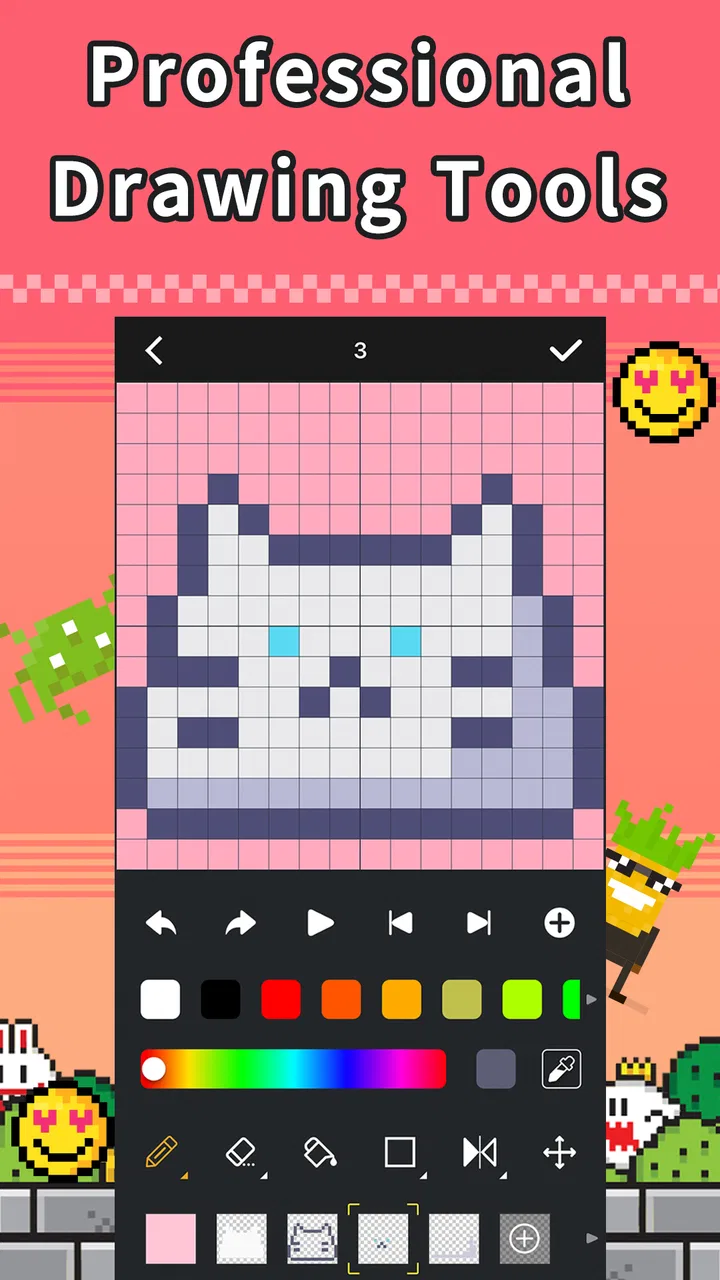
That is where this app makes a sensible first impression. It is less intimidating than an all-purpose illustration package, so I can concentrate on shapes, color blocks, outlines, and animation-like visual thinking instead of searching through a large collection of professional controls. The focused approach is especially helpful when I am making icons, tiny characters, decorative scenes, or visual messages intended for a pixel display.
I also consider the relationship between the app and its developer. Divoom Lab HK international is not presenting this as an unrelated generic art canvas. The app sits naturally beside the company’s pixel-display products, which changes how I evaluate it. A drawing tool that is merely pleasant on a phone is one thing; a tool that helps me prepare content for a dedicated display has a clearer everyday purpose.
The app is free, and its store summary emphasizes that there are no third-party ads and no in-app purchases, with all functions available to users. That matters in practice because creative work is easily interrupted by advertising or locked tools. I can experiment without feeling that an interesting brush, color option, or workflow is waiting behind a payment screen.
The first useful decision: what will you make?
Before installing it, I would decide whether the intended result is pixel artwork itself or a general illustration. If I want a small, deliberately limited image, the app is a strong candidate. If I want a poster with layered text, smooth gradients, photographic elements, and precise layout control, I would start elsewhere.
Pixel art rewards restraint. I often get better results by choosing a small palette, blocking the largest shapes first, and resisting the temptation to add detail too early. This editor encourages that mindset because the visual language is built around clear, compact forms. The limitation becomes useful when I have a specific target, such as a tiny mascot, a simple landscape, or a short visual sequence for a display.
One practical use is creating a set of related images instead of one complicated masterpiece. For example, I might make several expressions for the same character: neutral, happy, surprised, and sleepy. Keeping the outline and palette consistent makes the set feel intentional. This is more manageable than attempting a highly detailed illustration, and it gives the app a role in personal decoration, small gifts, room displays, or themed visual collections.
Why the focused canvas works
The biggest strength is the way the pixel format turns drawing into editing. I am not trying to imitate natural brush movement. I am deciding which cells should exist, which colors should touch, and where the eye should go first. That makes the experience feel closer to designing a visual symbol than painting on a blank digital page.
For beginners, this can be less frustrating than a conventional art app. A large canvas with many brush presets may look powerful, but it can also make it difficult to understand why an image feels unbalanced. In pixel art, the consequences are visible. If the face is too wide or the outline is uneven, I can usually identify the problem by looking at the individual blocks.
For experienced artists, the attraction is different. The app can serve as a quick sketchpad for low-resolution ideas. I can test a silhouette, a color relationship, or a tiny scene without opening a heavyweight desktop program. It is not necessarily where I would finish every project, but it is a convenient place to explore concepts that depend on strong shapes.
Three workflows that make it more useful
My first tip is to design in layers of importance, even if the app does not turn the process into a formal professional layer workflow. I begin with the background, then the main silhouette, then the strongest internal shapes, and only afterward add highlights or tiny accents. This prevents detail from hiding a weak composition. In a small image, the silhouette should still be recognizable when I mentally ignore the colors.
My second tip is to treat color as a hierarchy rather than a collection. I choose one dominant color family, one contrasting element, and a limited highlight color. This is particularly helpful for display-oriented artwork, where too many competing colors can make a small image look noisy. A restrained palette also makes a group of designs look connected when shown together.
My third tip is to preview the artwork from a distance. Pixel art can look impressive when I zoom in because every tiny mark is visible, yet become unreadable at its intended viewing size. I regularly step back, reduce my attention to the overall shape, and ask whether the subject still communicates. If it does not, I remove detail before adding more.
A fourth workflow is useful for icons and status images: create a strong version in a single color first. Once the symbol reads clearly as a silhouette, I add color and small highlights. This avoids using color to disguise an unclear shape. It also produces artwork that remains recognizable in different display conditions.
Everyday scenario: making a small display set
Imagine I want to refresh a desk display for a weekend project. Rather than searching for a complicated image, I could create three compact designs: a weather symbol, a simple coffee cup, and a small character holding a sign. I would keep the background treatment consistent, use a related palette, and make each subject readable at a glance.
The advantage of this approach is not artistic ambition; it is repeatability. Once I understand the visual scale, I can produce another design without relearning a large application. The app becomes part of a small routine: sketch, simplify, check the silhouette, adjust the colors, and send the result into the Divoom-centered setup when appropriate.
This also shows the main trade-off. The app is most satisfying when I have a concrete output in mind. If I only want to doodle freely with expressive brushes, a conventional sketching app may feel more natural. Here, the restrictions are the point, so they help one project and hinder another.
How it compares with ordinary art apps
Compared with general drawing apps, this editor offers a narrower creative lane. A typical sketching application is usually better for pressure-sensitive lines, soft shading, broad brushwork, and freehand studies. A photo editor is better for combining images, correcting photographs, and adding polished typography. A vector application is better for scalable logos and clean geometric layouts.
Divoom’s editor makes more sense when the final image should look intentionally pixelated rather than merely low quality. That distinction is important. Reducing a smooth illustration to a small size does not automatically create convincing pixel art. Good pixel work uses deliberate edges, controlled clusters, and a palette that supports the subject. A focused editor encourages those decisions instead of hiding them behind automatic resizing or effects.
There is also a difference in motivation. General art apps invite me to keep adding detail. This one encourages me to ask what can be removed while preserving the idea. For icons, decorative scenes, and display graphics, that is often the more useful discipline.
On the other hand, someone who already has a favorite pixel-art program on a computer may find the mobile workflow limiting. Desktop tools can provide a larger working area, more precise navigation, and a more comfortable environment for long sessions. I would not switch from a mature professional setup solely because this app is easier to open. I would use it as a quicker companion when convenience matters more than exhaustive control.
Who should use it, and who should skip it?
I recommend it to beginners who want to learn how pixel images are constructed without entering a complicated software ecosystem. It is also a good fit for people who enjoy making small personalized visuals, owners of Divoom displays who want content that feels more personal, and artists who like working within strict boundaries.
It may suit parents or teachers looking for a simple way to introduce visual ideas such as contrast, symmetry, repetition, and shape recognition. The Everyone content rating makes it approachable for a broad audience, although the best experience will still depend on the user’s patience and interest in creating rather than simply consuming images.
I would skip it if my priority were professional illustration, photo manipulation, elaborate lettering, or a flexible design pipeline for many unrelated formats. I would also skip it if I dislike working at a deliberately limited resolution. Some people experience pixel art as liberating; others experience it as fiddly. The difference becomes obvious after a few minutes of editing.
Practical expectations about access and compatibility
The app was released on December 22, 2017, and the current version is 3.8.32. It requires Android 7.0 or later, so anyone using an older Android device should check compatibility before planning a workflow around it. On supported devices, the free pricing and unrestricted function policy make trying it a low-risk decision.
Its reach is already substantial, with over one million installs, a 4.7 average from around twenty thousand ratings, and roughly one thousand written reviews. I read those figures as evidence that the app has found a clear audience, not as proof that every artist will prefer it. Popularity cannot remove the basic question of fit: do I want a pixel-focused tool connected to the Divoom experience?
For iOS users, I would make the same decision based on the version available for the device and the way I plan to use the artwork. The important point is to treat the app as part of a specific creative ecosystem rather than assuming it is a universal replacement for every mobile art tool.
The real cost of switching
Because the app is free and does not rely on third-party ads or in-app purchases, the financial cost of testing it is low. The more meaningful cost is learning its way of working. If I already create art in another application, I may need to rethink canvas size, color choices, and how I handle revisions. Pixel art is not simply ordinary drawing with a block filter applied.
There is also a time cost when moving an existing project into a different workflow. A detailed illustration may need to be simplified manually rather than transferred perfectly. I would therefore start with a small personal project instead of attempting to migrate an important portfolio piece. A simple icon or character is a better test because it reveals whether I enjoy the editor’s constraints without putting valuable work at risk.
My advice is to create a short trial set: one icon, one character, and one scene. The icon tests clarity, the character tests expression and silhouette, and the scene tests whether the palette remains readable when several elements share the canvas. If all three feel comfortable, the app is probably a good addition to the toolkit. If even the icon feels laborious, a broader drawing app may be the better choice.
Another switching consideration is where the finished work will be viewed. Artwork made for a small pixel display should be judged at that display’s practical viewing distance, not only on a bright phone screen. A design that looks balanced in the editor may need stronger contrast or simpler shapes once it becomes part of a room, desk, or shelf.
What I would improve in my own workflow
I would keep a small visual checklist beside me: readable silhouette, limited palette, clear focal point, and no unnecessary isolated pixels. That last point is easy to overlook. A single stray square can look like a defect, a sparkle, or an accidental mark depending on its position. Checking the image at normal size helps me decide whether each pixel has a job.
I would also save related designs as a family rather than treating each one as an isolated experiment. A consistent outline thickness, repeated background color, or shared accent creates a stronger result than adding more detail to one image. This is especially valuable when the artwork is intended for a display that changes between several visual states.
Finally, I would keep the first version simple and make revisions by subtraction. Pixel art often improves when I remove a highlight, straighten an edge, or combine two similar colors. That editing habit is one of the app’s quiet benefits: it makes me evaluate the purpose of each mark instead of relying on decorative effects.
My recommendation
I recommend Divoom’s pixel art editor to anyone who wants a free, focused way to create small pixel designs, particularly when those designs are meant to complement Divoom hardware. The lack of third-party ads and in-app purchases makes experimentation comfortable, and the specialized format gives beginners a clear creative boundary rather than an overwhelming toolbox.
I would not describe it as a complete replacement for professional art software. If I needed scalable graphics, photo editing, advanced typography, or a broad illustration workflow, I would choose a different category of app. Its limitations are genuine, but they are also what make it approachable and useful for the right project.
My final decision is simple: install it when the pixel aesthetic is part of the goal, not merely an effect you want to apply afterward. Start with a tiny icon or character, use a restrained palette, check the result at its intended viewing size, and then decide whether the workflow suits you. For that specific purpose, this is a practical and pleasant tool, and I can recommend it to a friend without pretending it is something broader than it really is.
FAQs for Divoom: pixel art editor
01What is Divoom: pixel art editor used for?
Divoom: pixel art editor is designed for creating, editing, and displaying pixel-art animations and images, particularly for compatible Divoom LED display devices. It provides tools for drawing frame-by-frame artwork, designing simple animations, and browsing or sharing creations through the Divoom community. The app is useful for beginners, hobby artists, and users who want to personalize a supported Divoom product.
02Do I need a Divoom device to use the pixel art editor?
You can generally use the editor to create pixel art without immediately owning a Divoom device, which makes it possible to experiment with the drawing tools and animation features first. However, the app’s main purpose is connected to Divoom hardware, such as pixel displays and speakers with screens. Some functions, including sending artwork to a device or controlling its display, require a compatible product and Bluetooth access.
03Is Divoom: pixel art editor suitable for beginners?
Yes, the app is approachable for beginners because pixel art is created on a relatively small grid, and the interface focuses on basic actions such as selecting colors, drawing pixels, filling areas, and editing animation frames. New users may still need time to understand layers, frame timing, and the limitations of low-resolution artwork. Tutorials, community examples, and repeated practice can make the learning process easier.
04Can I create animated pixel art with Divoom?
The app supports creating more than static pictures, allowing users to build animations by working with multiple frames. You can draw each frame, adjust the sequence, and preview the result before displaying or saving it. Because the artwork is designed for compact LED screens, animations usually work best when they use clear shapes, strong contrast, and limited detail rather than complex illustrations with many tiny elements.
05Does Divoom: pixel art editor require an internet connection or special permissions?
An internet connection may be needed for features such as signing in, browsing community artwork, downloading shared designs, synchronizing content, or accessing online services. Bluetooth permission is typically important when connecting the app to a compatible Divoom device, while notification or storage permissions may depend on your phone and the app version. Permission requirements can change, so review the requested access before accepting it.
Pros
- Large library of pixel-art templates and animations to start quickly.
- Supports custom designs for compatible Divoom LED devices.
- Simple tools make basic pixel art accessible to beginners.
- Community content provides fresh ideas and visual inspiration.
- Works well for creating small
- looped animations and icons.
Cons
- Advanced drawing tools may feel limited for professional artists.
- Some features only work with supported Divoom hardware.
- Creating detailed animations on a phone can be time-consuming.
- Community content quality and usefulness can vary considerably.
- Bluetooth pairing may require occasional reconnecting with the device.

Divoom: pixel art editor
Gallery